


Tuesday, March 6, 2012
PTU ~ Mystic


This tutorial was written by me, Lori, on July 22, 2010.
And it was written for those who should already have a basic knowledge of working with PSP. I used Paint Shop Pro XI
Do not copy this tutorial and post it through any group or claim it as your own. Please share a text link only.
Any resemblance to any other tutorial is strictly coincidental.
Supplies needed
Tube(s) of choice, I used Martin Abel, you must purchase a license found here.
PTU Scrapkit by Tamsin of Tamsin McAtee Studios called “Norberts House” (No longer avalible)
Font of choice (I used Sandy TextHmkbold)
Tag template #110 by Rachel of Scraps of Enchantment and can be found here.
Please remember to stop and save often.
Add drop shadow of choice as you go. Refer to my example as needed
Let's Rock this Tutorial!!
Open template, using your shortcut keys on your keyboard (SHIFT+D) duplicate the template as a new image. Close the original.
Open papers 3, 5, 8, 9, 10, 12, 14 of choice, resize to liking, minamize to use later.
Go to Circle1, Select-All, add new raster layer, copy paper 14 and paste into selection. Go back to Circle1, select-All-Float-Defloat-Invert, go to paper 14 layer, hit delete key on keyboard. Do this with all layers, using paper 12 for Circle2, paper 9 for Cricle3 and paper 10 for Circle 4. Paper 3 for Black Rectangle, paper 5 for Grey Rectangle, paper 14 for Rounded Rectangle, paper 9 for frame and paper 8 for Shape Bottom and Shape Top, delete the Grey Strip layer.
Open element Sparkles3, resize to liking, copy and paste as new layer arrange to the left inside the circles.
Open element Glitter frame3, resize to liking, copy and paste as new layer arrange over circles 1 and 2.
Open element Flowers3, resize to liking, Go to the rounded rectangle layer, copy and paste as new layer arrange to fit in the middle of the rounded rectangle.
Open element Bow1, resize to liking, Go to Image-Mirror. Go to the frame layer, copy and paste bow as new layer arrange to fit on the top right corner of the frame.
Open element Norberts House, resize to liking, copy and paste as new layer arrange to fit to the left of the circles.
Open any one of the Norberts that comes with the kit, resize to liking, copy and paste as new layer arrange to liking, I used one of the sitting ones and had it sit on the frame.
Open element Flowers3, resize to liking, Go to the rounded rectangle layer, copy and paste as new layer arrange to fit in the middle of the rounded rectangle.
Open element Sparkles2, go to the shapes layer, copy and paste as new layer and arrange to fit between the top shape and bottom shape.
Add tube, arrange to fit at the bottom with a little hanging out out of the frame to the right, duplicate and arrange this layer below the frame layer, with your eraser tool, carefully erase the part of the tube hangin out of the frame to the left, go to the top tube and do the same.
Add name, Copyright info and license and save!
Thanks for Rocking Out my tutorial, I hope you enjoyed! ~Lori

PTU~Fan Club

This tutorial was written by me, Lori, on July 26, 2010.
And it was written for those who should already have a basic knowledge of working with PSP. I used Paint Shop Pro XI
Do not copy this tutorial and post it through any group or claim it as your own. Please share a text link only.
Any resemblance to any other tutorial is strictly coincidental.
Supplies needed
Tube(s) of choice, I used artwork by Lix, you must purchase a license found here.
PTU Scrapkit by Shani of Wicked Princess Scraps called “Poisoned Rain”and can be found here.
She also has a wonderful freebie add on to this kit and I used a few things from it also. All elements and papers used from freebie will be titled 'element WP_PRX'
Font of choice (I used Pussycat)
Tag template #340 by Missy of Divine Intentionz and can be found here.
Please remember to stop and save often.
Add drop shadow of choice as you go. Refer to my example as needed
Let's Rock this Tutorial!!
Open template, using your shortcut keys on your keyboard (SHIFT+D) duplicate the template as a new image. Resize canvas to 800x800 pixels, you will crop/resize later. Close the original.
Open papers 2, 8, 11, 22, WP_PRX 7, resize to liking, minamize to use later.
Go to Circle1, Select-All, add new raster layer, copy paper 14 and paste into selection.
Go to your background layer, Select-All, add new raster layer, paste paper 2 into selection. Go to Layers-Add new mask layer from image making sure you have the source for the mask checked add your mask of choice. See image below:
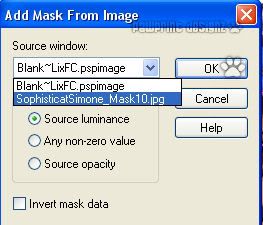
Go to Layer-Merge-Group.
Go to Shape1 layer, Select-All-Float-Defloat, add new raster layer and paste paper 8 into selection. Do this also for shape layer2. Do the same for shape layers 3 and 4 pasting paper WP_PRX 7 from the add on kit into selection.
Go to the thin rectangle 1, open element WP_PRX Blingos resize 489x61 pixels and paste as a new layer, arrange to fit over the thin rectangle, Duplicate layer, go to Image-Flip and delete rectangles 1 and 2.
Go to Circle2 layer, open element Circle frame and arrange above circle two.
Go back to Circle2, Select-All-Float-Defloat, add new raster layer and paste paper 11 into selection. Delete circle 1 and glitter circle.
Go to frame background 1, select-All-Float-Defloat, add new raster layer and paste paper 22 into selection. Do this with frame backround2.
Go to frame2, with your change to target tool, change the color to color of liking, I used the blue from the kit. Do this with frame1.
Open element barbedwire resize 485x56 pixels and paste as a new layer, arrange to fit above the blingo on the top, duplicate layer, go to Image-Flip so it'll be below the blingo at the bottom.
Open element Amp, resize 109x117 pixels, paste as a new layer and arrange to the bottom left.
Open element speaker, resize 101x130 pixels, paste as new layer and arrange to the bottom right.
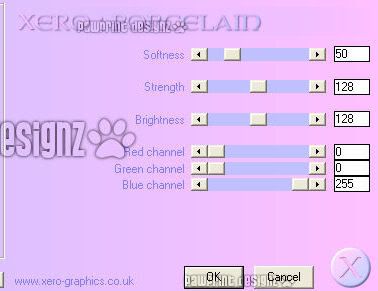
Add tube of choice, arrange to the right of the Amp. Duplicate layer and go to Image-Mirror so it'll be to the left of the speaker. If you like, duplicate the speaker layer and arrange the copy above the tube layer, with your eraser tool, carefully erase a small portion of the speaker on the left so it looks like part of the V guitar is in front of the speaker. Go to Plug-ins-Xero-Porcelain using the settings below:
Open element wingedbox, resize 332x161, paste as new layer and arrange at the top in the middle.
Open element emobunny, resize 169x167 pixels, paste as new layer and arrange at the bottom in the middle.
Open element WP_PRX_Screw, resize 45x47 pixels, paste as new layer and arrange to the top left of the mask layer, duplicate layer go to Image-Mirror so that it is to the top right of the mask layer.
Go to word art, with your selection tool set to RBG Value, click inside the letters of Fan Club, go to Selection-Float-Defloat, add a new raster layer and paste paper 11 into selection. Go to Effects-Plug-ins-Eye Candy 4000-Glass using the settings in the images below.

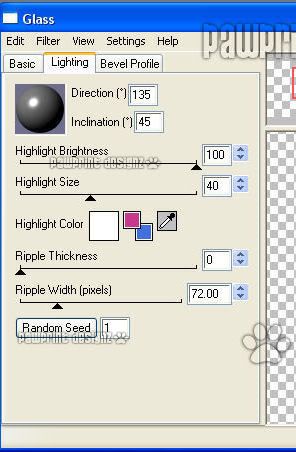

Crop and resize all layers to liking.
Open element WP_PRX_Spikes, copy and paste as new layer with resizing it. Erase any spikes you wish not to be in the picture, I only left the three at the top and the far right and far left at the bottom.
Add name, Copyright info and license and save!
Thanks for Rocking Out my tutorial, I hope you enjoyed! ~Lori
Friends Make the world go around

This tutorial was written by me, Lori, on August 5th, 2010.
And it was written for those who should already have a basic knowledge of working with PSP. I used Paint Shop Pro XI
Do not copy this tutorial and post it through any group or claim it as your own. Please share a text link only. If you use this tutorial please send me a copy of the tag you made with it to my e-mail to the left. I'd LOVE to see the creations and post into my slide show! Thank You!
Any resemblance to any other tutorial is strictly coincidental.
Supplies needed
Tube(s) of choice, I used the Gorjuss Artwork by ©Suzanne Woolcott, you must purchase a license found here.
PTU Scrapkit by Tamsin McAtee Studios called "Duck Duck Goose" (no longer available) .
Tag template#67 by Yvette of Essence of Creativity and can be found here.
Word art by Lori (not me..lol) and can be found here.
Plug Ins, Xero and Eye Candy 4000.
Font of choice (I used Chancery Cursive)
Mask of choice.
Please remember to stop and save often.
Add drop shadow of choice as you go. Refer to my example as needed, merge layers down as needed to make things a little eaiser.
Let's Rock this Tutorial!!
Open the template in PSP, using your shortcut keys on your keyboard (SHIFT+D) duplicate the template as a new image. Close the original.
Open papers of choosing,m inamize for later use.
Delete wordart layer.
Go to circle 1, go to Selections-All-Float-Defloat, add new raster layer and paste paper of chooing into selection. Delete original layer. Do this with all circles, Frames and Square Backgrounds.
Go to the Stitches and with your change color tool change the color to black, or one of your choosing.
Go to square background 1, paste tube of choice as a new layer, resize and arrange to liking. Duplicate layer, go to Image-Mirror and arrange to liking in square background 3. Go back to square background 1, Select-All-Float-Defloat-Invert, go to the tube layer and hit the delet key on your keybord. Do the same to square background 3.
Add another tube of choosing by the same artist, and repeat the above steps to square backgrounds 2 and 4.
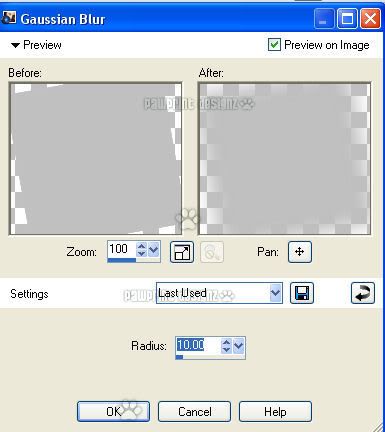
Go to the tube in square background 1, duplicate layer, go to the original tube layer, go to Adjust-blur-Gaussian Blur with the settings in the image below:
Go to Duplicated layer, go to Effects-Xero-Porcelian using the settings in the image below:
Go to Effects-Photo Effects-Black and White Film using the below settings:
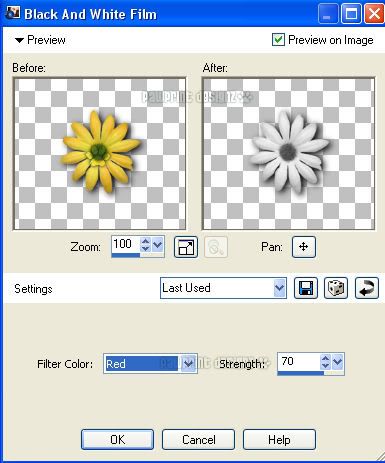
Go to your layer properties set the visiablity to 40. Do the same to the tube in background 4.
For the tubes in backgrounds 2 and 3 use the same Porcelian settings for each.
Add any elements of choice. Add another tube by the same artist and arrange behind the background layers.
Open wordart of choosing, paste as a new layer, arrange to your liking. Go to Select-All-Float-Defloat, add a new raster layer, paste paper of choosing into selection. Arrange this layer below the wordart layer, add a black Graident Glow of choice.
Go to raster28, Select-All, add new raster layer and paste paper of choice into selection. Go to Layers-Add new mask layer and add mask of choice.
Add name , Copyright info, license and save!
Thanks for Rocking Out my tutorial, I hope you enjoyed! ~Lori
Thursday, August 18, 2011
PTU-Gimme Dat Mojo - tutorial
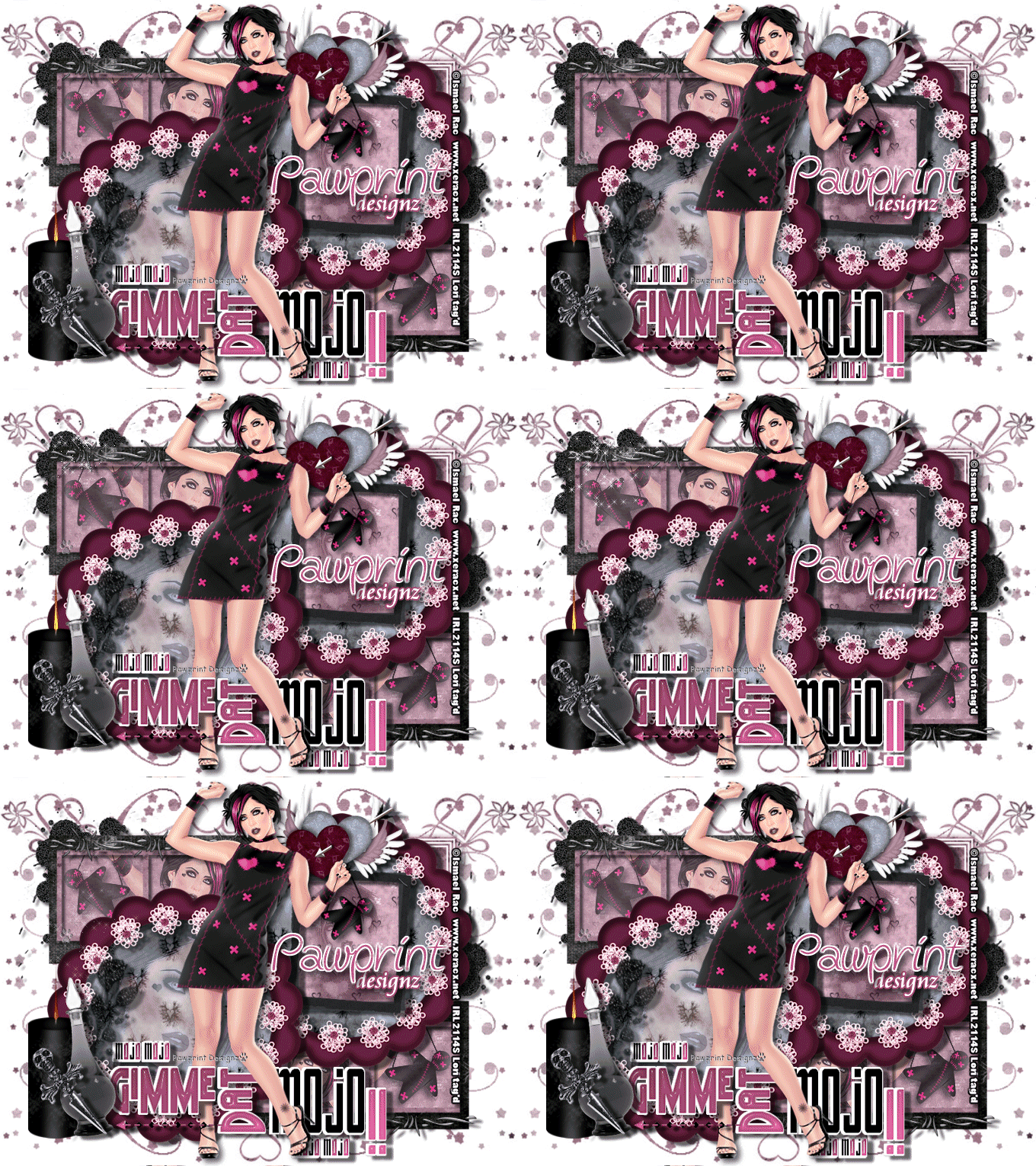
This tutorial was written by me,
Lori, on Aug. 17, 2011.
And it was written for those who should already have a basic knowledge of working with PSP. I used Paint Shop Pro X3
Do not copy this tutorial and post it through any group or claim it as your own. Please share a text link only.
And it was written for those who should already have a basic knowledge of working with PSP. I used Paint Shop Pro X3
Do not copy this tutorial and post it through any group or claim it as your own. Please share a text link only.
Any
resemblance to any other tutorial is strictly coincidental.
Supplies needed
Tube(s)
of choice, I used the Artwork by ©Ismael Rac you must
purchase a license found here.
PTU now FTU
Scrapkit by Shani of Wicked Princess Scraps called Melancholy
Love and can be found here.
Tag template by Missy
of Divine Intentionz and can be found here.
EyeCandy plug-in (I used
4000)
Mask of choice.
For animation, sparkles of
choice.
Animation Shop if you
choose to animate.
(instructions will be
below the tutorial.)
Please remember to stop
and save often.
Add drop shadow of choice
as you go. Refer to my example as needed, merge layers down as needed
to make things a little easier.
Let's Rock this Tutorial!!
Let's Rock this Tutorial!!
Open up the
template.
Shift + D.
Close out the original.
Shift + D.
Close out the original.
Resize canvas 800x600, you
can resize/crop at the end.
Highlight Raster1 layer
select-all add new raster
layer
paste paper 2 into
selection.
Deselect.
Add new mask layer of your
choice.
Highlight the top left halftone layer.
Open element GLITTERSPLAT
Mirror and arrange to
liking on top left side.
Duplicate-mirror-flip
arrange to the right
middle of tag.
Delete both halftone
layers.
Highlight the bottom right
rectangle layer.
select-all add new raster
layer
paste paper 2 into
selection.
Go back to bottom right
rectangle
float-defloat-invert
hit the delete key on your
keyboard.
Do the same to the top
left rectangle layer
Delete both original
layers.
Do the same to the
frames back
using paper7 and
Circle and Circle3 layers
(blue circles)
using paper 17.
Add tube of choice to fit
inside the frames.
Arrange and Resize to
liking
delete any tube extending
outside the frames.
for the top tubes, set
visibility to 60%
and the bottom to 75%
Open element BARBEDWIRE
resize to liking and
arrange
to the top left, duplicate
and arrange to the bottom
right.
Open element
SCALLOPEDFLORALFRAME
resize 70% and arrange
over circle3
Duplicate and arrange over
the first circle.
Delete all 4 original
circle layers.
Paste tube of choice
inside the bottom frame.
Delete/erase any tube
extending outside the frame.
Go to layer properties set
visibility to 37.
Go to
effects-xero-porcelain
using the following
settings.
(insert image)
Open the black frame
element.
Resize to 50%
Arrange over frame layer.
Delete both original frame
layers.
With your magic wand,
click inside the frame
paste paper 11 into
selection.
Add tube of choice,
arrange and
delete any tube extenging.
outside the frame.
Go to your layers palette
set the properties to
luminance (legacy).
Go to the wordart by minx,
select inside the Gimme
Dat the !!'s
and O's in the small mojo
words.
add new raster layer
floodfill with color from
kit or tube.
Do not deselect.
Go back to the original
wordart layer and hit the delete
on your keyboad.
Deselect.
Go to the new Gimme Dat
layer
Go to effects-eyecandy4000
Glass using the following
settings:
(insert image)
Add elements,
GLITTERFLOWER,
GRUNGECANDLE, BOTTLE
and SKULLDAGGER
in that order.
Re-size and Arrange to the
bottom left.
Add any other elements if
you like.
Add tube of choice
Add your name, Copyright
info, license and save!
Thanks for Rocking Out my
tutorial, I hope you enjoyed! ~Lori
For animation of
flames:
Zoom in real close to the
candle, with your magic wand click the flame on the candle until you
have ants going around it. Zoom back out. Go to Plug in: EyeCandy
4000 Fire using these settings: Direction: 90; Column Length: 739;
Flame Width: 13.86; Side Taper: 33.49; Movement: 33; Check Denser
Flames; Check Start from far side; Random Seed: 67; hit ok. Select
none and save as png, naming it 'frame1',
'frame2, frame 3, and so
on.......
Do this until you have as
many frames as needed.
For example, the sparkles
in my tag has 16 frames,
I wanted 2 extra,
so I made 18 frames w/the
flames and saved each as a .png in PSP.
Go to Animation Shop
Animation Wizard,
following each step as
shown. (pawprints is what is clicked)
(insert images)
when the next window pops
up click 'finish'
View and Save animation!
(If you need help in
saving an animation, click here.)
Thursday, August 11, 2011
PTU- Make Me Bad

This tutorial was written by me, Lori, on June 28, 2011.
And it was written for those who should already have a basic knowledge of working with PSP. I used Paint Shop Pro X3
Do not copy this tutorial and post it through any group or claim it as your own. Please share a text link only.
Any resemblance to any other tutorial is strictly coincidental.
Supplies needed
Tube(s) of choice, I used the Artwork by © Misticheskaya you must purchase a license found here.
PTU Scrapkit by Tootypup called Emo Lost and can be found here.
Tag template by Cakes of Crazy Cakes Scraps and can be found here.
Please remember to stop and save often.
Add drop shadow of choice as you go. Refer to my example as needed, merge layers down as needed to make things a little easier.
Let's Rock this Tutorial!!
Open up the template.
Shift + D.
Close out the original.
Delete small rectangle layer.
Resize canvas to 850x850 (will resize, crop later)
Highlight layer 14.
Select-all-float-defloat
Add New Raster layer.
Flood fill with color #83507b.
Go to your layer properties click on Color (legacy)
Do the same with layer 13 and 3.
Highlight layer 12.
Select-all
Add New raster layer
Paste paper 4 into selection.
You may want to resize a little smaller with your pick tool.
Go to layer 12.
Go Select-all-float-defloat-invert
Go to the paper layer and hit the delete key on the keyboard.
Delete template layer.
Do this with layers 11 and 1, using same paper
layer 10, 9 and 6 using paper 6
layer 8 and 7 using paper 8.
For layer 2 click only inside the red circle
add new raster layer and paste paper 8 in selection.
Go back to layer 2, click only inside the lettering.
Add new raster layer and flood fill w/color #83507b.
Go to selections-modify-expand by 1
flood fill with black, add a drop shadow using the color #83507b.
Go to wordart layer, do the same as above.
Go to adjust-add noise and add noise of choice.
If you move this layer down you will have to merge these layers.
Open Goth Doodle 3 element.
Go to Image-mirror
Carefully erase the clock
Resize 75%
Copy and paste as a new layer
Arrange to the left.
Open Deco Doodle 1 element.
Carefully erase the right side.
With your magic wand set to add (shift) and color,
carefully click only inside the skull, you may have to do this several times
to get the whole skull w/marching ants around it.
Change the color of the green skull to color of choice.
Mirror Image.
Copy and paste as a new layer
Arrange to the right.
Add any other elements of choice and arrange to liking.
Add tube, rearrange to liking.
Add tube below the first small circle layer.
Duplicate, go to original set blur to Gaussian 5.0.
Make black and white
go to duplicated layer, set to Overlay with a visibility of 50.
Crop and resize image to liking.
Add your name, Copyright info, license and save!
Thanks for Rocking Out my tutorial, I hope you enjoyed! ~Lori
Monday, July 25, 2011
Peeking Privileges

This tutorial was written by me, Lori, on July 25, 2011.
And it was written for those who should already have a basic knowledge of working with PSP. I used Paint Shop Pro X3
Do not copy this tutorial and post it through any group or claim it as your own. Please share a text link only.
Any resemblance to any other tutorial is strictly coincidental.
Supplies needed
Tube(s) of choice, I used the Artwork by © Elias Chatzoudis you must purchase a license found here.
PTU now FTU Scrapkit by Shani of Wicked Princess Scraps called LILBOPEEPERS and can be found here.
Creative Misfits Callob template by Sapphy and Deanna and can be found here.
Please remember to stop and save often.
Add drop shadow of choice as you go. Refer to my example as needed, merge layers down as needed to make things a little easier.
Let's Rock this Tutorial!!
Open up the template.
Shift + D.
Close out the original.
Highlight left pink rectangle layer.
Select-all, add new raster layer.
Paste paper 2 into selection.
Go back to Raster 1 layer.
Select-all-float-defloat-invert
Go to paper 2 layer
hit delete key on your keyboard.
Delete the template layer.
Do this again for right pink rectangle
Open Heart Spray.
Copy and paste as new layer above paper 2 layer
Resize to fit over paper 2.
Arrange to the right.
Duplicate-mirror
Highlight Black Circle layer.
Select-all, add new raster layer.
Paste paper 10 into selection.
Go back to Black Cricle layer.
Select-all-float-defloat-invert
Go to paper 10 layer
hit delete key on your keyboard.
Delete the template layer.
Go to Circle Frame.
Change to color of choice from the kit.
Add noise.
Checking uniform, 68%, monochrome
Highlight blue squares layer.
Select-all
Add New raster layer
Paste paper 3 into selection.
Go back to blue squares layer.
Select-all-float-defloat-invert
Go back to paper 3 layer
hit the delete key on your keyboard.
Delete template layer.
Add tubes of choice to fit inside the squares
arrange to liking.
Go to the small square frames
Click inside the frames
select-all-float-defloat-invert
go back to the tube layers
hit the delete key on your keyboard.
Go to Effects-photo effects-black and white film
all colors set to 33.3% and brightness and clarify set to 0.
go to your layer properties
set the layer to luminance Legacy
Go to the small square frames
select-all, add new raster layer
paste paper 6 into selection.
Go back to blue squares layer.
Select-all-float-defloat-invert
Go back to paper 6 layer
hit the delete key on your keyboard.
Delete template layer.
Delete the stars layer.
Go to the pink center shape
select-all, add new raster layer
paste paper 8 into selection.
Go back to pink center shape.
Select-all-float-defloat-invert
Go back to paper 8 layer
hit the delete key on your keyboard.
Delete template layer.
Go to Raster 6 layer
change the color to #808080
Add a small drop shadow if you like.
Go to the black center square
select-all, add new raster layer
paste paper 12 into selection.
Go back to black center square.
Select-all-float-defloat-invert
Go back to paper 12 layer
hit the delete key on your keyboard.
Delete template layer.
Add tube of choice to fit inside the black center square
arrange to liking.
Go to center square frame
Click inside the frame
select-all-float-defloat-invert
go back to the tube layer
hit the delete key on your keyboard.
go to your layer properties
set the layer to luminance Legacy
set visibility to 70.
Go to center square frame
change color and add noise as above Circle frame.
Open rose swag.
Paste as new layer.
Go to image-mirror-flip
arrange to the top right of circle.
Resize if wanted.
Add any other elements if you like.
Add tube arrange to liking.
Go to Raster 5
change to color of chosing.
You may have to click inside the wording a few times
to change all the colors in it.
Add your name, Copyright info, license and save!
Thanks for Rocking Out my tutorial, I hope you enjoyed! ~Lori
Thursday, July 21, 2011
'like Strawberry Wine' PTU

This tutorial was written by me, Lori, on July 21, 2011.
And it was written for those who should already have a basic knowledge of working with PSP. I used Paint Shop Pro X3
Do not copy this tutorial and post it through any group or claim it as your own. Please share a text link only.
Any resemblance to any other tutorial is strictly coincidental.
Supplies needed
Tube(s) of choice, I used the Artwork by © Anna Marine you must purchase a license found here.
PTU Scrapkit by Stina called Strawberry Wine and can be found here.
Tag template by Vicki a/k/a Pink Princess and can be found here. Scroll down to the last set of templates.
2 Fonts of choice.
(I used Times New Roman and Satisfaction)
Please remember to stop and save often.
Add drop shadow of choice as you go. Refer to my example as needed, merge layers down as needed to make things a little easier.
Let's Rock this Tutorial!!
Open up the template.
Shift + D.
Close out the original.
Highlight Raster 7 layer.
Copy and paste frame 01 as new layer
resize to fit, delete original layer
Highlight Raster 1 layer.
Select-all, add new raster layer.
Paste paper 14 into selection.
Go back to Raster 1 layer.
Select-all-float-defloat-invert
Go to paper 14 layer
hit delete key on your keyboard.
Delete the template layer.
Open frame 08.
Copy and paste as new layer above paper 14 layer
Resize to fit over paper 14.
Delete Raster layer 6.
Highlight Raster 2 layer.
Select-all
Add New raster layer
Paste paper 12 into selection.
Go back to Raster 2.
Select-all-float-defloat-invert
Go back to paper 12 layer
hit the delete key on your keyboard.
Delete template layer.
Highlight Raster 3 layer.
Select-all
Add New raster layer
Paste paper 07 into selection.
Go back to Raster 3.
Select-all-float-defloat-invert
Go back to paper 07 layer
hit the delete key on your keyboard.
Delete template layer
Paste tube of choice under Raster 4 layer.
Resize to fit inside the frame.
Open frame 05.
Go to image-roate right.
Copy and paste over Raster 4 layer.
Resize to fit.
Delete template layer.
Open Wrap 03
Copy and paste over the bottom of the frame.
Resize to fit.
Open Rose 01.
Copy and paste over Raster 5.
Resize to fit.
Duplicate layer
Go to Image-mirror
you may have to arrange to fit over Copy of Raster 5 layer.
Open Bow 02.
Copy and paste over Raster 5.
Resize to fit.
Arrange on the top right corner of frame.
Open Strawberry String.
Copy and paste over Bow 02.
Resize to fit.
Open StrawberryBouquet02.
Copy and paste over Strawberry String.
Resize to fit.
Open WineBottle03
Arrange on the bottom left corner of frame.
Resize to fit.
Open Strawberries01
Arrange on top of the WineBottle
Resize to fit.
Open StrawberryTini
Copy and paste over Strawberries
Resize to fit.
With font Times New Roman
type 'Oh bittersweet' in black.
Select-all-float-defloat-expand by 2.
Add new raster layer below the word layer.
Flood fill selection with color of choice,
I used a red from the kit.
Merge the top wordart down to the flood fill layer.
Arrange on the top left corner of frame.
With font Satisfaction
type Strawberry Wine in the Red you just used.
Select-all-float-defloat-expand by 2.
Add new raster layer below the word layer.
Flood fill selection with black.
Merge the top wordart down to the flood fill layer.
Arrange to the bottom right corner.
(see my image if needed)
With font Times New Roman
type 'like' in black.
Select-all-float-defloat-expand by 2.
Add new raster layer below the word layer.
Flood fill selection with the same red color.
Merge the top wordart down to the flood fill layer.
On top of the word Strawberry again,
see my image if needed.
Open lips.
Resize to fit.
Arrange next to the word Wine.
Add your name, Copyright info, license and save!
Thanks for Rocking Out my tutorial, I hope you enjoyed! ~Lori
Subscribe to:
Posts (Atom)
 Thanks to Shani of Wicked Princess Scraps for the use of her kit, Strength In Me, a FTU kit to help raise awareness in testicular cancer. No matter what kind of cancer it is, if you love someone with cancer, be by their side and 'Love them through it'.


- Lori
- Hello, my name is Lori. I work full time as a Grooming Salon Manager, I LOVE my 4 legged 'Babies'! (Hence the name of my blog) I'm soon to be married to a Great man, Put (actually it's his nickname). I have 2 Beautiful Daughters and 1 Handsome Son. I also have 2 Grandsons, Hunter and Trey, and a Step-Grandson, Logan! In my spare time I love to make tags and scrap page Lo's! I hope you enjoy and come back often!


