


Wednesday, January 19, 2011
Keith Garvey ~ Strokin' tutorial


This tutorial was written by me, Lori, on Jan 19, 2011.
And it was written for those who should already have a basic knowledge of working with PSP. I used Paint Shop Pro XI
Do not copy this tutorial and post it through any group or claim it as your own. Please share a text link only.
Any resemblance to any other tutorial is strictly coincidental.
Supplies needed
Tube(s) of choice, I used the Artwork of ©Keith Garvey, you must purchase a license found here.
Tag template by me and can be found here.
PTU Scrapkit by Tamsin McAtee called "Love is in the air" (no longer avalible)and can be found here.
Font of choice (I used Doris Day)
Plug In: Xero
Please remember to stop and save often.
Add drop shadow of choice as you go. Refer to my example as needed, merge layers down as needed to make things a little eaiser.
Let's Rock this Tutorial!!
Open the template in PSP, using your shortcut keys on your keyboard (SHIFT+D) duplicate the template as a new image. Close the original.
Open papers of choice mimize for later use.
Open element sparkles resize 373x289 pixels, copy and paste as new layer, go to layers-arrange-send layer to the bottom. Duplicate layer, go to image-mirror, duplicate layer, go to image-flip, duplicate layer go to image-mirror. Go to the first on of these layers and each one down so they are on one layer. Delete backgoundlayer.
Go to rectangle 1, open element flower spray, resize to 417x129 pixels, copy and paste at the bottom over rectangle 1, duplicate layer go to image-mirror, again go to the top layer and merge down so they are on one layer. Delete original rectangle layer.
Go to rectangle2 layer Select-All-float-defloat, add new raster layer, paste paper of choice into selection, delete original layer. Do this with rectangle3, lg Circle, lg CircleFrame, FrameBackground, Frame, brackets, each small cirle and each small circle frame, using papers of your choosing.
Go to (wordart) layer, Select-All-float-defloat, add new raster layer, flood fill color of choice into selection, delete original layer. Go to wordart backing, select-All-Float-Defloat, add new raster layer and floodfill with black, delete original layer.
Go to lgCircle layer, paste tube of choice, resize and arrange to liking, Select-All-float-Defloat-Invert, hit your delete key on your keyboard.
Go to effects-xero-Porcelain, using these settings.

Go to your layer pallette and set the visiablity to 50.
Go to the frame layer, paste same tube of choice over the frame, arrange to liking, go to effects-xero-Porcelain using the same settings as above.
Open another tube of choice from the same artist, (prefferably male tube), arrange to your liking, inside the lgCircle above the first tube. Go to your layer pallette and set visiablity to 60.
Go to the frame Backgound, paste the male tube as a new layer and arrange to liking, duplicating several times and arranging to liking. I did this 4 times, the first two, (top left and bottom right) I set the layer properties to luminance(legacy) with layer visiablity set to 70. The second two, (top right, and middle right) I kept the layer properties normal with visiablity set to 75.
Go to small circle1 and paste a tube into the frame arranging to liking, go back to the small circle, Select-all-float-defloat-invert go to the tube and hit the delete key on your keyboard. Do this with each cirlce, alternating tubes if you used two different ones. On circle1 and circle4 tubes, go to effects-photoeffects-black and white film with the filter color set to red and the strength set to 40. Go to effects-xero-Porcelain using the above settings. On circle2 and circle3 tubes, go to effects-photoeffects-sepia toning with age amount set to 60. On each layer go to the layer properties and set the visiablity to 65.
Open heartscatter element, resize 264x391 pixels, paste as new layer and arrange to the left of the tag, Open ribbons, resize ribbon1 67x182 pixels and ribbon2 31x177 pixels, paste as new layers and arrange on the left bracket. Open bow element of choice, resize 70x86 pixels and arrange on top of the ribbons.
Open flowerspray, with your selection tool set to rectangle, select a small flower, copy and paste as new layer, resize, 39x39 pixels and arrange above bow. Paste flower again as new layer and arrange in the middle of the right bracket.
Add anyother elements of your choosing.
Add your name, Copyright info, license and save!
Thanks for Rocking Out my tutorial, I hope you enjoyed! ~Lori

Sunday, January 16, 2011
It's a Forum Set Tutorial!
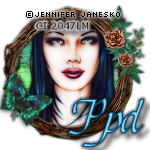
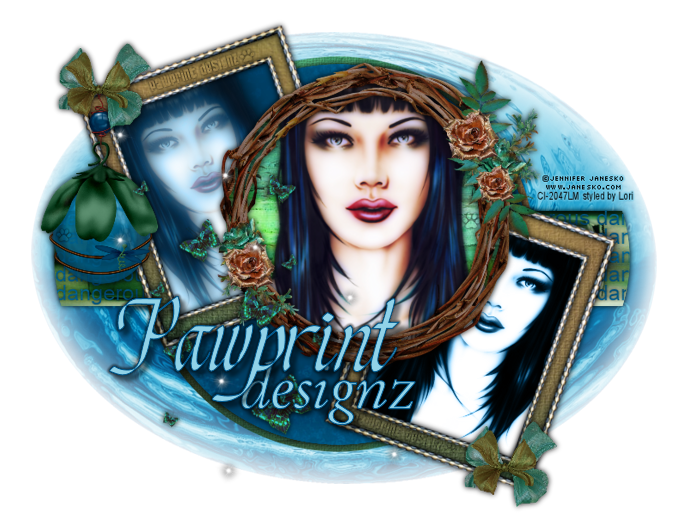
This tutorial was written by me, Lori, on Jan 16, 2011.
And it was written for those who should already have a basic knowledge of working with PSP. I used Paint Shop Pro XI
Do not copy this tutorial and post it through any group or claim it as your own. Please share a text link only.
Any resemblance to any other tutorial is strictly coincidental.
Supplies needed
Tube(s) of choice, I used the Artwork by ©Jennifer Janesko you must purchase a license found at Creative Design Outlet. (I'm using a tube from CILM, which as we all know is now closed.)
Tag template #8 by Candylicious Designz and can be found here. (first posting Sep. 2010)
PTU Scrapkit by Shani of Wicked Princess called Deliriously Delilah and can be found here.
Font of choice (I used Chancery Cursive)
Plug In: Xero
Please remember to stop and save often.
Add drop shadow of choice as you go. Refer to my example as needed, merge layers down as needed to make things a little eaiser.
Let's Rock this Tutorial!!
Open the template in PSP, using your shortcut keys on your keyboard (SHIFT+D) duplicate the template as a new image. Close the original.
Open papers 5, 6, 10, 13, and 14 mimize for later use.
Open element whirlpool, resize 686x516 pixels, copy and paste as new layer, go to layers-arrange-send layer to the bottom. Delete back circle left and back circle right layers.
Go to black stripe layer Select-All-float-defloat, add new raster layer, paste paper 14 into selection, delete original layer.
Go to raster 1 (wordart) layer, Select-All-float-defloat, add new raster layer, paste paper 13 into selection, delete original layer.
Go to purple forground circle, Select-All-float-Defloat, add new raster layer, paste paper 13 into selection, delete original layer.
Go to black background circle, Select-All-float-Defloat, add new raster layer, paste paper 6 into selection, delete original layer.
Go to black square right, Select-All-float-Defloat, add new raster layer, paste paper 13 into selection, delete original layer. Also do this with black square left layer.
Open element double frame, with your selection tool set to rectangle, draw a rectangle around the smaller frame. Go to edit-Copy and paste as new layer arrange over the bottom right square.
Go to selections-all, add new raster layer below the frame, paste paper 5 into selection. Go to the frame, with your magic wand click between the inner and outer frames, go to selections-modify-expand by 2, go to selections-invert. Go to the paper layer and hit the delete key on your keyboard. Merge the frame layer down to the paper layer. Duplicate layer, go to Image-Mirror and arrange over the top left square. Delete both white squares.
Add tube of choice to fit inside each of the frames, arrange to your liking.
For the bottom right one, go to effects-xero-radiance, using settings:

go to your layer properties and set the layer to luminance(legacy).
Go to the top left tube, duplicate layer, making sure you're working on the bottom of the two, go to adjust-blur-gaussian blur set to 10, go to layer properties and set the layer to luminance(legacy).
Go to the top of the two tube layers, go to layer properties and set the visiablity to 30.
Go to pink circle layer, Select-All, add new raster layer, paste paper 10 into selection, go to selection-float-defloat, go back to the paper layer and hit the delete key on the keyboard. delete original layer and dotted line layer.
Add tube of choice, from the same artist of course, arrange to liking inside the circle. Go to the circle layer, select-All-float-Defloat-invert, go to the tube layer and hit the delete key on your keyboard. Go to effects-xero-Porcelain using these settings:

Open element twig frame2, resize 334x319, copy paste as new layer and arrange over main tube layer.
Add anyother elements of your choosing.
Add your name, Copyright info, license and save!
Thanks for Rocking Out my tutorial, I hope you enjoyed! ~Lori
***for the forum set, merge the twig frame, tube and background layers, copy and paste as a new image, resize 150x150 pixels, add copyright info, name/intial. I also selected the largest butterfly out of the butterfly spray and pasted it as a new layer and arranged it just over the bottom left rose.
Wednesday, December 8, 2010
Janesko Merry Christmas

This tutorial was written by me, Lori, on May 18, 2010.
And it was written for those who should already have a basic knowledge of working with PSP. I used Paint Shop Pro XI
Do not copy this tutorial and post it through any group or claim it as your own. Please share a text link only. If you use this tutorial please send me a copy of the tag you made with it to my e-mail to the left. Thank You!
Any resemblance to any other tutorial is strictly coincidental.
Supplies needed
Tube(s) of choice, I used the Artwork by ©Jennifer Janesko, you must purchase a license found here.
PTU Scrapkit by Tamsin McAtee Studios called "Roasting Chestnuts" and can be found here.
Tag template 54 by Deb of Creative By Nature, one of the Creative Misfits templates challenge and can be found here. Deb's blog is here, where you can find other wonderful stuff!!
Font of choice
Plug Ins (all are optional):
Xero (Porcelian, Radiance, Lineart and Caravaggio)
EyeCandy 4000 (Fire and Gradient Glow)
Please remember to stop and save often.
Add drop shadow of choice as you go. Refer to my example as needed, merge layers down as needed to make things a little eaiser.
Let's Rock this Tutorial!!
Open the template in PSP, using your shortcut keys on your keyboard (SHIFT+D) duplicate the template as a new image. Close the original.
Open papers, 2, 4, 8 and 9. Minamize for later use.
Go to glitterlarge layer, with your color change tool change the color to #a37b50, go to adjust-add/remove noise add noise using these settings:

Go to black large layer, select-All-float-Defloat, add new raster layer and paste paper9 into selection, delete original layer.
Open element doodlee 2 resize to 175x190 pixels, copy paste as new layer, arrange to liking in the top right corner. Duplicate layer, go to image-mirror-image-flip and arrange to liking in bottom left corner, move layer to above L shape black layer.
Go to L shape glitter layer and change color to #bbd4f8 with your color changing tool, add same noise as above.
Open paper 2 resize to 430x425 pixels, copy and paste above the black L layer arrange to fit over the black L. Set layer visiablity to 80. Delete original layer.
Open tube of choice, resize if needed, paste as new layer arrange to the right of your paper2 layer, set visiablity to 50.
Open glitter element, resize to 206x393 pixels. Paste as new layer arrange to the right, duplicate layer, go to image-mirror-image-flip and arrange at the bottom of the paper 2layer.
Open snowflake of choice resize 76x85 pixels, arrange over the snowflake at the bottom left, duplicate and arrange over the top right snowflake, duplicate and arrange over the middle right snowflake, delete original snowflakes.
With your magic wand click inside the square black layer, go to Selections-modify-expand by 2. Add a new raser layer and paste paper 8 into selection. Arrange below the square black layer
Add tube of choice below the frame, go to frame click inside it again, go to Selections-invert, go back to the tube layer, hit delete on your keyboard. Set the layer visiablity to 520.
Go to the square black layer once more, this time click outside the frame, go to selections-invert and paste paper 4 into selection, do not deselect. Go to selections-float-defloat-invert and hit the delete key on your keyboard.
Open element sparkles, resize to 53x413. Paste as new layer and arrange to the right of the frame, duplicate and arrange to the left of the frame, if you want, as I did, duplicate each sparkle to make them brighter.
Open bauble4 element, resize to 173x354 pixels, arrange to the left of the frame. Open bow of choice, resize 237x185 pixels and arrange at the top left corner. Open snowflake1, resize to 173x179 pixels, arrange over the bow. Open Stockings element resize to 426x236 pixels, arrange over the bottom of the frame.
Add tube of choice, go to effects-xero-porcelain using the following settings:
Add tube of choice, arrange just above the bow layer and to fit inside the frame. With your eraser tool, carefully erase an tubing below the frame.
Go to word art layer, select-All-Float-Defloat add new raster layer, floodfill with color of choice, go to selections-expand and expand by 2, go to original layer and flood fill with black. Go to the top layer, go to effects-xero-lineart using the following settings:

Go to effects-xero-caravaggio using the following settings:

Add any other elements of choice.
Add name , Copyright info, and license, and save.
Thanks for Rockin' my tutorial!!
Lori
Sunday, December 5, 2010
FTU!! Santa's Bitch

tutorial was written by me, Lori, on Dec. 5, 2010.
And it was written for those who should already have a basic knowledge of working with PSP. I used Paint Shop Pro XI
Do not copy this tutorial and post it through any group or claim it as your own. Please share a text link only. If you use this tutorial please send me a copy of the tag you made with it to my e-mail to the left. I'd LOVE to see the creations and post into my slide show! Thank You!
Any resemblance to any other tutorial is strictly coincidental.
Supplies needed
Tube(s) of choice, I used the Artwork of ©Scott Blair, you must purchase a license found here.
FTU Scrapkit by Vicky of True Taggin' Love called "Crazy Christmas" and can be found here.
Tag template by Ella Von Grim of Sinister Designs and can be found here.
Font of choice (I used Santas Sleigh Full Bold)
Plugins: Xero; Eye Candy 4000
Please remember to stop and save often.
Add drop shadow of choice as you go. Refer to my example as needed, merge layers down as needed to make things a little eaiser.
Let's Rock this Tutorial!!
Open papers 1, 3, 4, 5 and 7 minimize for later use.
Open the template in PSP, using your shortcut keys on your keyboard (SHIFT+D) duplicate the template as a new image. Close the original.
Open paper 6, copy and go to larger bg layer and Select-All-Float-Defloat and paste paper6 into selection. Do this with circle 1 using paper 5, circle 2 using paper 4, circle 3 using paper 3 and rectangle bg using paper 7.
Open tube of choice, copy and paste above circle 3 to your liking. If there is any part of the tube hanging below the film strip, use your eraser tool to erase it. Duplicate 2 times and arrange each one above the other two circles to your liking, go one of the circles, Select-All-Float-Defloat-invert, go to the tube for that circle and hit your delete key on your keyboard. Do this for the other circle. On the middle tube set visiablity to around 40, and for the last tube set the visiablity to around 50.
Go to the original tube, go to effects-Plugins-Xero-Porcelain using these settings:
then go to effects-Plugins-xero-raidance using these settings:
go to the film strip and paste smaller bits of the tube to your liking, click inside each square with your magic wand go Select-invert, go to each tube layer and hit your delete key on your keyboard.
Merge each tube down until they are on one layer. Duplicate layer and on your bottom layer go to adjust-blur-gaussian blur set to 10.00.
Go to the top tube layer, Go to effects-time machine set to the earliest time mine was 1839, with intensity set to 30.00
Open ornament element of choice, resize to 157x205 pixels and copy and paste as new layer and arrange so it is haning over the 't' in Santa.
Open the larger swag element resize to 588x170 pixels and copy and paste as new layer and arrange so it's under the 'Merry %#@# Christmas'.
(this next part is optional, if you want to leave all the words, do not erase or add the poinesetta)
Open the poinesetta resize to 135x131 pixels and arrange in the middle of the swag bow. With magic wand set to selection-rectangle, draw a rectangle around the 'F'ing' part of the wordart, hit delete on your keyboad.
Go to Santa word art layer, go to effects-plugins-eyecandy4000-glass using these settings with the glass color set to 7c0f0f:


Go to Bitch word art layer, go to adjust-add/remove noise add noise with these settings:

go to effects-plugins-eyecandy4000-glass using the same settings as above, with the color set to 72895b.
Go to the Merry Chirstmas word art and add the same glass settings as above, using color bfc8ab.
Add Copyright info, license and save!
Thanks for Rocking Out my tutorial, I hope you enjoyed! ~Lori
Thursday, December 2, 2010
What happens at Santas Stays at Santas

This tutorial was written by me, Lori, on Dec. 2. 2010.
And it was written for those who should already have a basic knowledge of working with PSP. I used Paint Shop Pro XI
Do not copy this tutorial and post it through any group or claim it as your own. Please share a text link only. If you use this tutorial please send me a copy of the tag you made with it to my e-mail to the left. I'd LOVE to see the creations. Thank You!
Any resemblance to any other tutorial is strictly coincidental.
Supplies needed
Tube(s) of choice, I used the Artwork by ©Ismael Rac, you must purchase a license found here.
Tag template#201 by Blissfully Beth and can be found here.
PTU Scrapkit by Shani of Wicked Princess called "Sparkling Solstice and can be found here.
Font of choice (I used Scriptina)
Mask of Choice
Plug In: Xero
Please remember to stop and save often.
Add drop shadow of choice as you go. Refer to my example as needed, merge layers down as needed to make things a little eaiser.
Let's Rock this Tutorial!!
Open the template in PSP, using your shortcut keys on your keyboard (SHIFT+D) duplicate the template as a new image. Close the original.
Open paper 13, 14, 17, and 19 mimize for later use.
Go to your raster1 layer Select-All, add new raster layer, paste paper 19 into selection, Select-none, Add mask, merge group. Delete raster 1 layer.
Go to green rect layer, Select-All, add new raster layer, paste paper 13 into selection, go back to green rect layer, Selections-float-defloat-invert and hit your delete key on your keyboard.
Do the above to layers, white square using paper 17 and green circle using paper 14.
Go to pink glitter frame, Select -All-float-defloat add new raster layer and flood fill with color #b20a11. Go to Adjust-add/remove noise-Add noise making sure uniform and momochrome are checked and noise amount is set to 100%. Do the same to the red glitter frame using a different color, I used #0a1d8.
Go to the pink circle2, open poinsetta element copy paste and resize as needed, arrange above the pink circle2 and delete original layer. Go to layers-duplicate the poinsetta go back to layers-mirror-flip and make sure it's above the pink circle1, delete the original layer.
Go to the black stripe, open element ribbonpearl, copy, paste and resize and arrange over the black stripe, delete original layer.
Using a close up of your tube, arrange inside the frame of the big square. Go to the square layer, Selections-float-defloat-invert go to the tube layer and hit the delete key on your keyboard. Set the layer visiabilty to around 30.
Go to the silver glitter frame, copy paste and resize if needed the circlecrumpleframe as a new layer. Arrange a little lower and to the left. Delete the silver glitter frame.
Open the Santa element arrange below the circle frame layer, duplicate and arrange the copy layer above the circle frame. Go to the circle frame and with your magic wand click inside the frame, now go to the original Santa, Selections-invert and hit the delete key on your keyboard. Go to the Santa copy and carefully erase anything below the circle frame.
Open element Christmasbow, copy and paste as a new layer resize if needed and arrange so it fits above the square frame, as if it's a bow around the square. Open element Holly arrange to the top right of the bow. Open element bellornament, arrange over the bow.
Add tube of choice, arrange to the left of the square. Go to Effects-xero-Porcelain using the following settings:
Go to the wordart layer, select-All-Float-Defloat, add new raster layer and carefully click inside seletion with your flood fill tool using color #db191a, or any color matching the kit or tube. Add new raster layer below this layer, go to selections-modify-expand by 2 and flood fill with white.
Add your name, Copyright info, license and save!
Thanks for Rocking Out my tutorial, I hope you enjoyed! ~Lori
Below is another tag I used Ismael Rac wonderful art, don't forget you need that license!! the kit by Wicked Princess Scraps , also another mask from Artmamas Studio and template from http://lovepsppselblog.blogspot.com/

Wednesday, November 17, 2010
Believe In Faries PTU
Below is a LO using the same kit...so awesome!!

This tutorial was written by me, Lori, on Nov. 10. 2010.
And it was written for those who should already have a basic knowledge of working with PSP. I used Paint Shop Pro XI
Do not copy this tutorial and post it through any group or claim it as your own. Please share a text link only. If you use this tutorial please send me a copy of the tag you made with it to my e-mail to the left. I'd LOVE to see the creations. Thank You!
Any resemblance to any other tutorial is strictly coincidental.
Supplies needed
Tube(s) of choice, I used the Artwork by ©Myka Jelina, you must purchase a license found here.
You may use any large wording of choice, using fat letters.
Font of choice (I used CaslonNo540SwaD for my name)
2 Masks of choice.
Please remember to stop and save often.
Add drop shadow of choice as you go. Refer to my example as needed, merge layers down as needed to make things a little eaiser.
Let's Rock this Tutorial!!
Open the template in PSP, using your shortcut keys on your keyboard (SHIFT+D) duplicate the template as a new image. Close the original.
Open paper 6, 11, and 12 mimize for later use.
Resize canvas to 800x800 pixels, you will crop and resize later.
Go to the the letters, Select-All, add new raster layer, paste paper 6 into selection, go back to your letters and Selections– float- defloat- Invert, hit the delet key on your keyboard. Delete original layer. For each layer add a mask of choice, making sure the bottom one is larger than the top one.
Open elements sparkle 1, resize to liking, go to Image-mirror-image-flip. Copy and past as a new layer behind the lettering.
Open elements sparkle 2, resize to liking. Copy and past as a new layer on top of the first sparkle layer.
Open elements flower scatter, resize to liking. Copy and past as a new layer on top of the both sparkle layers.
Open ladder element, resize to liking, copy and paste on the right side of lettering.
Open element flower7, resize to liking, copy and paste just to the left of the latter.
Open element stones, resize to liking, copy and paste just under flowers.
Open element rabbit, resize to liking, go to image-mirror, copy and paste just on top of the right side of the rocks.
Open element cluster2, resize to liking, copy and paste on the left side of the letters.
Open house2, resize to liking, copy and paste just below flower clusters on the left.
Open element dragonfly, resize to liking, copy and paste on the top left of the letters
Add tube(s) of choice, arrange to liking.
Add Copyright info, license and save!
Thanks for Rocking Out my tutorial, I hope you enjoyed! ~Lori
Here is a LO using this kit, if you want to see more awesomeness LO's go here
My Grandson Hunter and his BCF (Best Cousin Forever!) Aubrey!

Thursday, November 11, 2010
I'm back with a new tutorial!! Mayhem Gurl
Hey everyone, sorry I was gone from tutorials for a spell, hoping to get back into the grove of things. Needed a little break! Any tutorials you see here, I'll be offering up over at Another Creative Design which you can join the forum here. Hope to see you there!! Now on to the tutorial
Mayhem Gurl

This tutorial was written by me, Lori, on Nov. 10. 2010.
And it was written for those who should already have a basic knowledge of working with PSP. I used Paint Shop Pro XI
Do not copy this tutorial and post it through any group or claim it as your own. Please share a text link only. If you use this tutorial please send me a copy of the tag you made with it to my e-mail to the left. I'd LOVE to see the creations. Thank You!
Any resemblance to any other tutorial is strictly coincidental.
Supplies needed
Tube(s) of choice, I used the Artwork by ©Keith Garvy, you must purchase a license found here.
Callab template by Missy and Rosey for Creative Misfits and can be found here.
PTU Scrapkit by Shani of Wicked Princess called "Smatha the Sassy" and can be found here.
Font of choice (I used NimbusRomdBold for my name)
Plug In: Xero
Please remember to stop and save often.
Add drop shadow of choice as you go. Refer to my example as needed, merge layers down as needed to make things a little eaiser.
Let's Rock this Tutorial!!
Open the template in PSP, using your shortcut keys on your keyboard (SHIFT+D) duplicate the template as a new image. Close the original.
Open paper 1, 2, 4, 5, 6, 10, 12, 18 and 28 mimize for later use.
Delete the background layer. Go to the large circle layer, Select-All, add new raster layer, paste paper 10 into selection, Make sure your large circle layer is active and Select – float- defloat- Invert, hit the delet key on your keyboard. Delete original large circle layer.
Do this with top purple rectangle using paper 5, rectangle shape 1 using paper 10, rotated rectangle shape using paper 2, purple cirle using paper 1, both thin rectangles using paper 28, dotted circle using paper 6, and circle using paper 12.
Go to your word art by Rose, Select-All, add new raster layer arrange below the wordart layer, paste paper 6 into selection, go back to your wordart layer and Select – float- defloat- Modfy- expand by 2- Invert, hit the delete key on your keyboard.
Open swirlyframe element, resize 452x462 pixels, copy and paste as new layer over the dotted circle.
Here's where it's gonna get a little 'tricky' with the wordart by Minx. Duplicate it so that you have 4 layers total. With your selection tool set to rectangle 0 feathering, draw a rectangle around the word Mayhem, go to Selections-float-defloat-hit your delete key on the keyboard. Do this also with the word girl and the exclmation marks. With your change to target tool change the color of the words 'always causing mayhem' to #9c92b2. Go to selections-all- add new raster layer, arrange below the word Gurl paste paper 5 into selection, go togo back to the gurl layer and Select – float- defloat- Invert, hit the delete key on your keyboard. Do this also with the exclamation mark using paper 2. Delete the separate layers you had made before.
Go to the Purple Stripi Wordart, select-All-Float-Defloat add new raster layer and paste paper 1 into selection.
Open winged heart element, resize 206x160, copy and paste as new layer arrange over top right star. Delete the star.
Open Barbedwiredoubleheart element, resize 216x147pixels, copy and paste as new layer arrange over bottom left star. Delete the star.
Open hornedframe element resize 156x 187 pixels, copy and paste as new layer arrange to the right of the large word mayhen. With your selection tool set to magic wand, click inside the heart and paste paper 18 into selection.
Add tube of choice as a new layer, arrange behind the Mayhem wordart. Duplicate original 2x's, make the copied layers non-visiable, we'll go back to them in a bit. Go back to the original tube, go to effects-xero-Porcelain using the following settings:
Go to effects-xero-radiance using the following settings:

Go to one of your duplicate tubes, arrange this so it's inside the swirlyframe to liking. Go to effects-Photo-Black and white film with the filter color set to red strength to 39. Duplicate this layer go to adjust-blur-gaussian blur with the radius set to 10.00. Go to the original layer, go to effects-xero-radiance using the following settings:

go to your layer properties set the visiablity to 20. see image:

Go to the smaller circle, select-All-float-Defloat-Invert, go to each tube layer and hit the delete key on keyboard.
Go to the last duplicated tube layer, and arrange so a portion of the tube is inside the heart frame, you may duplicate this arrange to liking and do the above instructions for the black and white tube if you like. Go to the heart frames background select-All-Float-Defloat-Invert, go to each tube layer and hit the delete key on the keyboard.
Add Copyright info, license and save!
Thanks for Rocking Out my tutorial, I hope you enjoyed! ~Lori
Subscribe to:
Posts (Atom)
 Thanks to Shani of Wicked Princess Scraps for the use of her kit, Strength In Me, a FTU kit to help raise awareness in testicular cancer. No matter what kind of cancer it is, if you love someone with cancer, be by their side and 'Love them through it'.


- Lori
- Hello, my name is Lori. I work full time as a Grooming Salon Manager, I LOVE my 4 legged 'Babies'! (Hence the name of my blog) I'm soon to be married to a Great man, Put (actually it's his nickname). I have 2 Beautiful Daughters and 1 Handsome Son. I also have 2 Grandsons, Hunter and Trey, and a Step-Grandson, Logan! In my spare time I love to make tags and scrap page Lo's! I hope you enjoy and come back often!


